
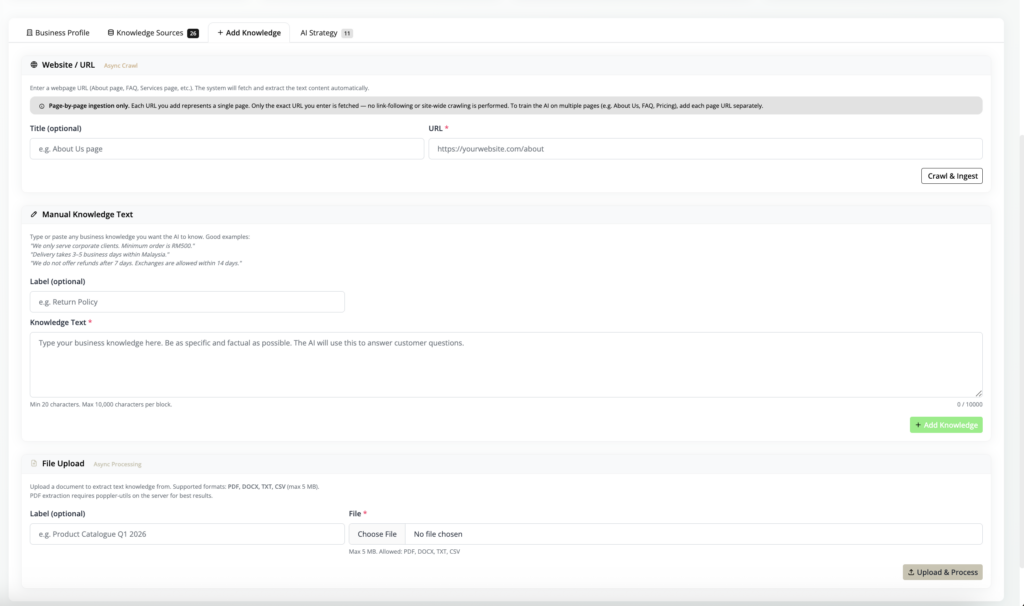
You can add knowledge in three ways: #
- Website / URL
- Manual Knowledge Text
- File Upload
Add Website / URL #

Use this when you want the AI to learn from a webpage.
Good examples:
- About Us page
- FAQ page
- Product page
- Service page
- Pricing page
- Policy page
- Terms and conditions page
Important :
Each URL is processed as one page only.
If your website has multiple important pages, add each page separately.
Example:
https://yourwebsite.com/about
https://yourwebsite.com/services
https://yourwebsite.com/faq
https://yourwebsite.com/pricing
How to add a website :
- Go to Add Knowledge.
- Find Website / URL.
- Enter a title.
- Enter the webpage URL.
- Click Crawl & Ingest.
- Wait until the source status becomes Completed.
Example:
Title:
Company FAQ Page
URL:
https://yourwebsite.com/faq
Manual Knowledge Text #
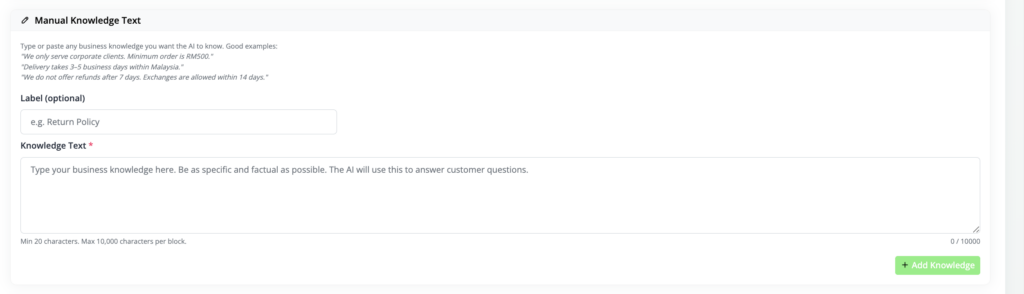
Use this when you want to type or paste information directly into the AI Brain.
This is useful for information that may not be on your website.
Good examples:
- Payment terms
- Delivery policy
- Warranty policy
- Refund policy
- Setup timeline
- Support hours
- Common customer questions
- Promotion details
- Sales explanation
How to add manual knowledge :
- Go to Add Knowledge.
- Find Manual Knowledge Text.
- Enter a label.
- Enter the knowledge text.
- Click Add Knowledge.
- Wait until processing is completed.
Example:
Label:
Payment Terms
Knowledge Text:
Payment must be completed before account activation unless otherwise agreed. For corporate customers, our team can prepare a quotation and invoice before payment. Subscription renewal is usually yearly unless stated otherwise in the quotation.
File Upload #

Use this when you want the AI to learn from a document.
Supported file types: PDF , DOCX , TXT , CSV
Good examples:
- Company profile
- Product brochure
- Service catalogue
- FAQ document
- Package comparison
- Onboarding guide
- Terms and conditions
How to upload a file :
- Go to Add Knowledge.
- Find File Upload.
- Enter a label.
- Choose your file.
- Click Upload & Process.
- Wait until the status becomes Completed.
Example:
Label:
Product Catalogue 2026
File:
product-catalogue.pdf
Check Knowledge Sources #
Click the Knowledge Sources tab.
This page shows all added knowledge.
You can check:
Source name
Source type
Status
Chunk count
Date added
Actions
Source Status #
Pending #
The knowledge has been submitted and is waiting to process.
Processing #
The system is processing the knowledge.
Completed #
The knowledge is ready for the AI to use.
Failed #
The knowledge failed to process. You may retry or delete it.
Available Actions #
Edit #
Update the title, URL, or manual text.
Retry #
Retry failed or pending processing.
Delete #
Remove the knowledge source from AI Brain.